Test and debug on your site
See a popup on your real page at once, find out why one isn't showing, and open popups from your own code.
A popup remembers who has seen it. That is what stops it nagging your visitors, and it is also why you often can’t see your own popup a second time while you’re testing. These tools get around that on your real site, without changing anything your visitors get.
All of them are switches you add to the address of any page that has the script on it. Nobody else downloads a byte of them.
| Add to the URL | What you get |
|---|---|
?op-preview=<popup id> | That published popup, straight away, on this page. |
?op-debug=1 | A panel listing every popup on the site and why each one does or doesn’t open here. |
?op-hide=1 | The page with no popups at all. |
If the page address already has a ?, add the switch with & instead, as in /shop?page=2&op-debug=1.
See a popup now: ?op-preview
https://yoursite.com/pricing?op-preview=<popup id>The popup opens as soon as the page loads. Its trigger, its pages, its frequency and its audience rules are all skipped, so it opens even if you have seen it, answered it, or are on a page it doesn’t normally show on. A small banner at the top says you’re in a preview, with Show again after you close it, a link to the debug panel and Exit preview.
A preview is not counted in the popup’s views, and it writes nothing to your browser’s popup memory. An answer you give in a preview is stored like any other, marked as a preview.
It shows the published version. Publish first if you want to see your latest changes.
You rarely need to type this yourself:
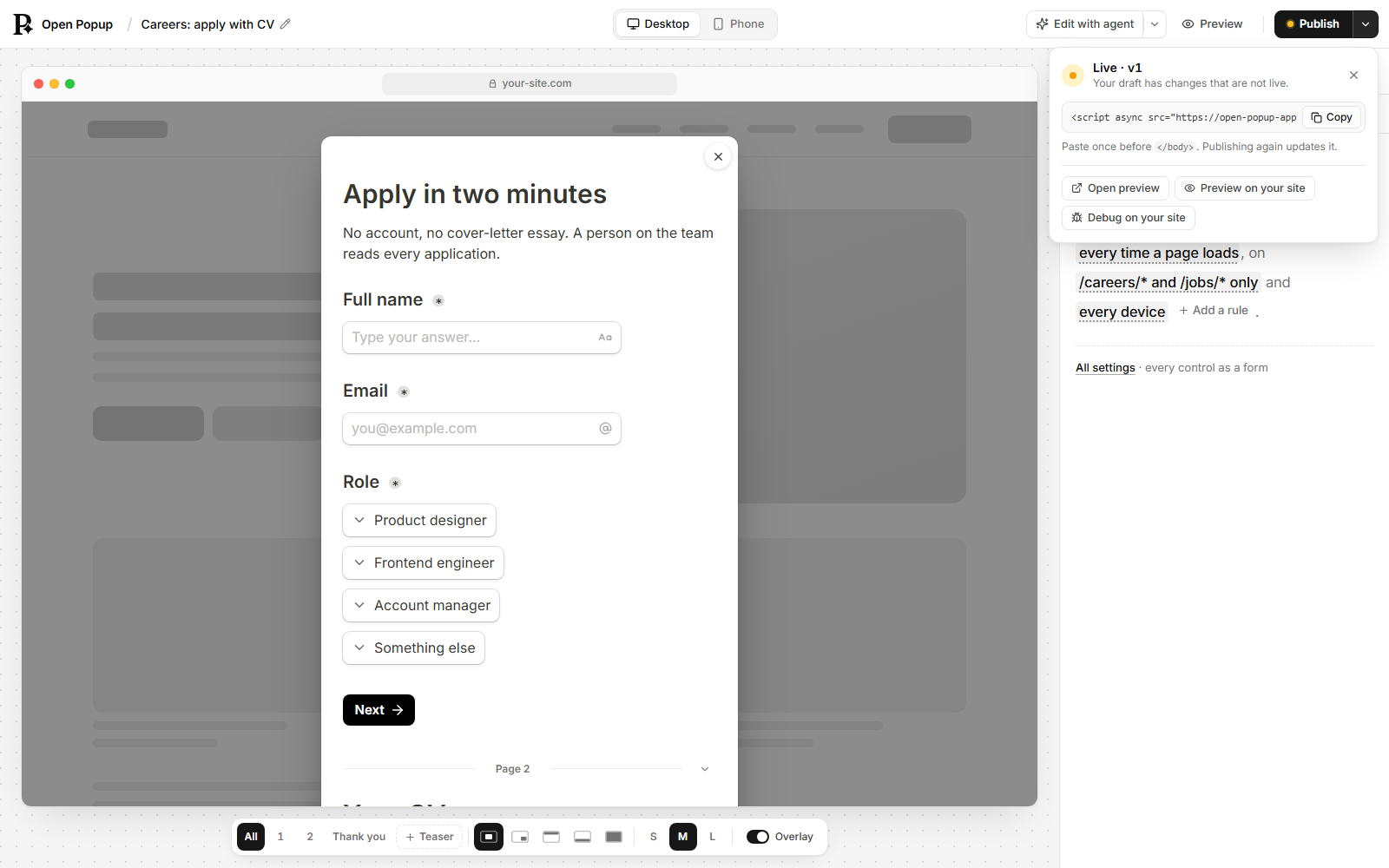
- In the builder, open the arrow beside Publish on a live popup and pick Preview on your site. Type the page you want it on and it opens there.
- When your agent publishes a popup, it gets a
livePreviewlink back, which is your site’s address with the switch already on it.
Find out why: ?op-debug
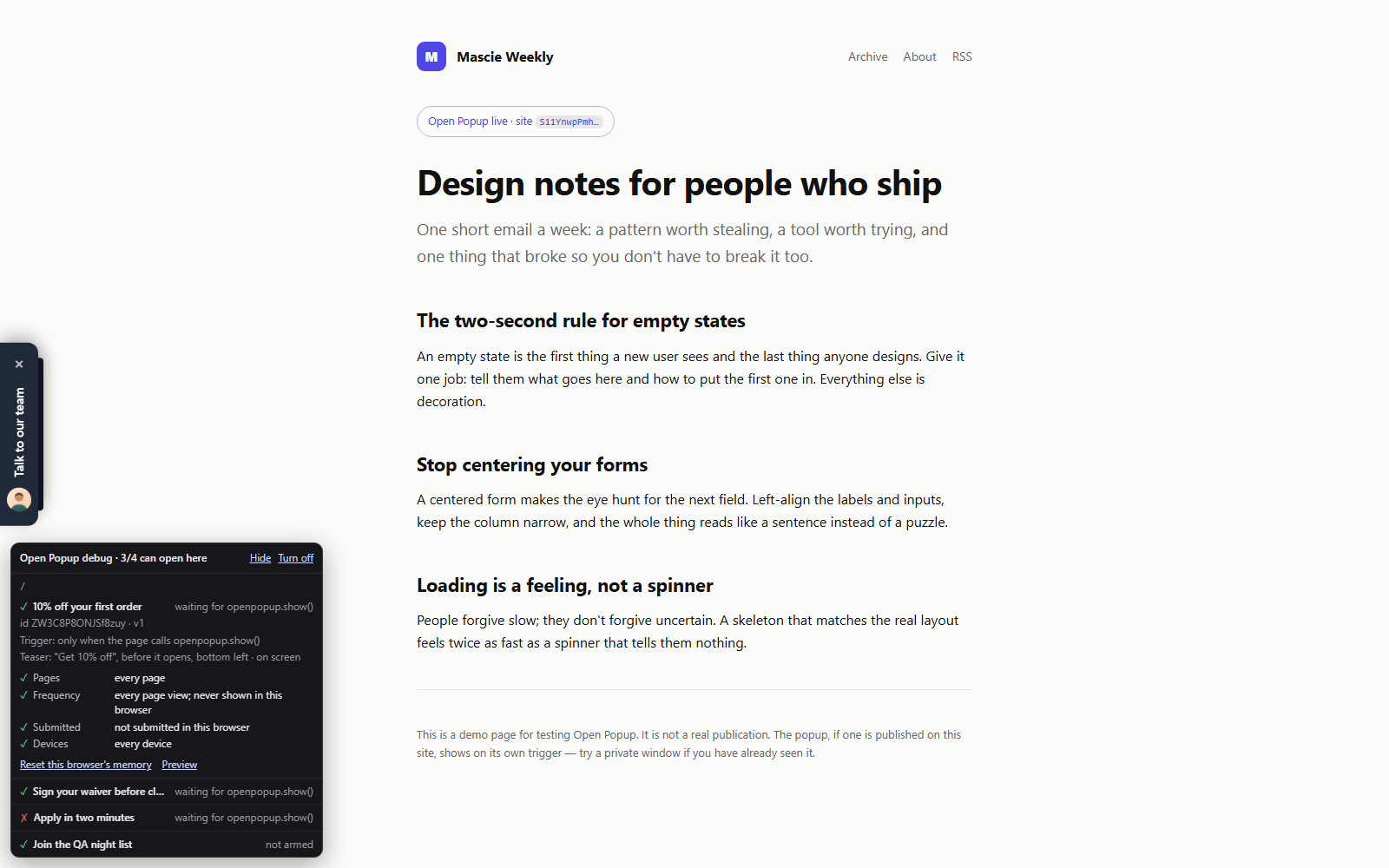
https://yoursite.com/?op-debug=1A panel opens in the bottom-left corner. Its header says how many of the site’s published popups can open on this page. Each popup is a row with a ✓ or a ✗ and where it stands (open, waiting, armed). Open a row to see:
- its id and published version, and its trigger in words, such as “after 10s on the page” or “on exit intent”;
- every rule the script checks, each passed or failed with a one-line reason: the page, the device, the schedule, the audience, how often it has been shown, whether you already answered it;
- Reset this browser’s memory, which forgets that you’ve seen or answered this popup, so it behaves as it would for a new visitor;
- Preview, which opens it with
?op-preview.
The panel updates as you move around the site, including in single-page apps. It stays on for the rest of the tab, on every page, until you visit a page with ?op-debug=0 or press Turn off. Hide shrinks it to its header.
In the builder, Debug on your site under the arrow beside Publish does the same thing for you.
Hide everything: ?op-hide
?op-hide=1 loads the page with no popups, for when you want to look at or screenshot your site without one in the way. It only lasts for that page load.
Open a popup from your own code
Any published popup can be opened by your site’s own JavaScript, for example after an add-to-cart, at the end of a quiz or from a tag manager:
window.openpopup.show("<popup id>");This skips the popup’s trigger and its page rule: your code has chosen the moment and the place. Everything else still applies. A popup set to show once that the visitor has already seen or answered stays closed, and so does one outside its schedule, device or audience. An id that isn’t one of the site’s popups does nothing.
A popup whose trigger is manual never opens by itself, only this way, or from its teaser.
The script loads asynchronously, so your code may run before it has arrived. To be safe, queue the call; it runs as soon as the script is ready:
window.openpopup = window.openpopup || [];
openpopup.push(["show", "<popup id>"]);
Several popups on one page
Only one popup that takes over the screen is up at a time: a centred popup, a fullscreen one, or a corner popup with an overlay. If a second one’s trigger fires while the first is open, it waits. When the first closes, the waiting popups that still fit the page, device, schedule, audience and frequency open one after another, highest priority first.
Bars, and corner popups without an overlay, sit beside the page instead. They never wait and never make anything else wait, so an announcement bar and a signup popup can share a page. When a centred popup opens over a bar, the bar sits under its overlay.
Priority decides which popup goes first when two compete. Set it in the dashboard (Popups → Priority: a number for each popup, and the higher number goes first), or ask your agent, which passes priority to create_popup or update_popup. Popups with the same priority go most recently saved first. A new priority reaches your site within a minute, with nothing to publish.
Single-page apps
On a site that changes pages without reloading (React, Vue, Next.js and most modern themes), the script notices each route change and re-decides every popup for the new page. A scroll or delay trigger starts again on the new page, and a popup already inside its frequency window stays hidden, so moving around doesn’t become a way to see it again.
When the new page is one a popup doesn’t belong on, a bar or corner popup that is open goes away. A centred or fullscreen popup goes too, unless the visitor has started filling it in.
Still nothing?
Ask your agent to run popup-audit on the popup. It reads the popup and its site and goes through the usual reasons one by one: not published, the script missing from the page, a page rule that doesn’t match, a frequency that has already run out in your browser.