Agent setup
Connect Claude Code, Cursor, Windsurf or any other MCP client to Open Popup.
The easiest way is the setup prompt. Copy it and paste it into Claude Code, Claude Desktop, Cursor, Windsurf or any other MCP client. It adds the MCP server, installs the popup skills and checks that everything answers.
The rest of this page explains what that prompt does, in case you want to do it by hand.
Claude Code
Use the plugin. It installs the MCP server and all seven skills in one go.
claude plugin marketplace add https://app.openpopup.ai/api/agent/marketplace.json
claude plugin install open-popup@open-popup
After that, run /reload-plugins or restart Claude Code. The skills are available straight away, but the tools only connect after the reload.
The skills live under the plugin’s name, so you call them as /open-popup:popup-coach, /open-popup:popup-new and so on.
Other MCP clients
Cursor, Windsurf and Claude Desktop each keep their MCP servers in their own settings file. Add Open Popup there with these values:
| Setting | Value |
|---|---|
| URL | https://app.openpopup.ai/mcp |
| Transport | HTTP. Not stdio and not SSE. |
| Auth | None to start with. See Your account and your agent. |
You only send an Authorization header if you run your own deploy and want admin access. In that case it is Bearer followed by your API_TOKEN.
The skills are optional but worth having. They tell your agent which tool to call first and what to check before publishing. Download them from https://app.openpopup.ai/api/agent/skills.json and save each one’s body as .claude/skills/<name>/SKILL.md, or wherever your client keeps skills.
Check that it works
Ask your agent to call popup_schema and list_templates. Both are free and read-only.
If they answer, you’re connected. If nothing comes back, the URL is wrong. A 401 means your client sent a token that was rejected, so remove the token and try again.
Don’t test with create_popup. It works, but it creates a real popup.
Your account and your agent
Your agent works the moment it’s connected, with no sign-in. Without one it is anonymous: it can create a site and popups on it, and it proves a site is its own with the site’s manage token, which create_site hands back. It can’t see anything in your account, and its stock-photo searches are rate-limited.
There are two ways to bring the two together.
Keep what your agent made. When your agent creates a site, it gives you a Keep this site link. Open it signed in and the site and its popups move into your account, where the dashboard shows them. An anonymous site nobody keeps is deleted after seven days. Lost the link? The builder’s Save to my account button copies a prompt: paste it to the agent that made the popup and it opens the link for you.
Sign your agent in. An agent signed in to your account sees and edits everything in it, like you do in the dashboard. The deploy supports MCP sign-in (OAuth): a client that offers it opens a browser page where you sign in with your Open Popup email and password and approve the agent, and from then on it acts as you. The agent never holds a password or the deploy’s API_TOKEN, only a token for your account. If a client’s sign-in expires, the server answers with a 401 that tells the client to sign in again. Not every client offers to sign in to a server that also works without it; if yours doesn’t, keep the sites your agent makes instead.
Remembered sites
An anonymous agent has no account to remember its sites in, so the Open Popup skills keep each site’s id and manage token in ~/.open-popup/sites.json on your computer. A later session on the same computer reads that file and finds the site again, so “change the popup we made yesterday” works without an account. The skills only ever add to the file.
Agent buttons in the dashboard
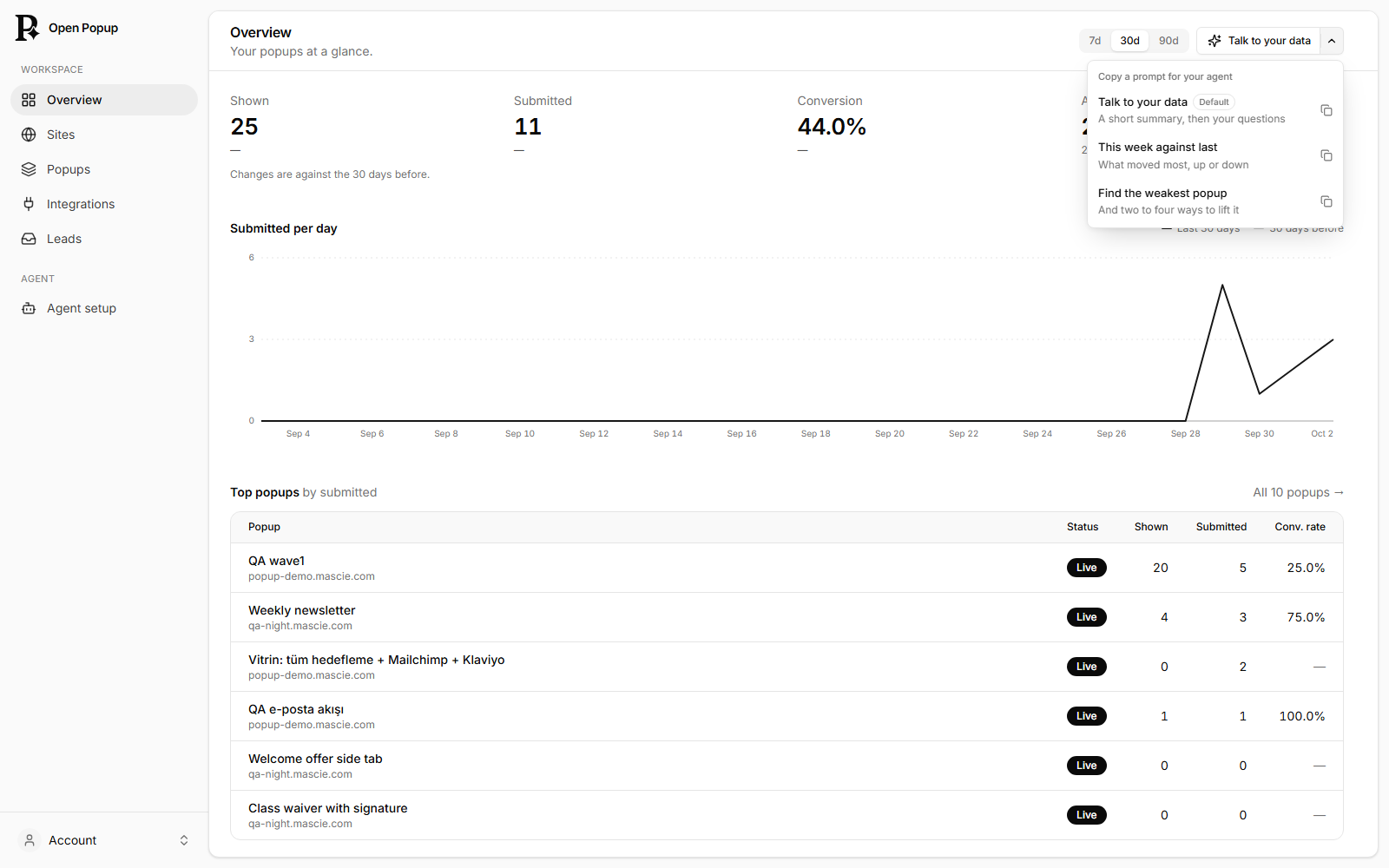
Several screens in the dashboard have a button that copies a ready prompt for your agent, built from what that screen shows: ids and numbers, never an answer a visitor typed and never a token. Paste it into your agent. Each button has two more prompts in its menu.
| Where | Button | The other two prompts |
|---|---|---|
| Builder | Edit with agent | Fix what the audit finds, Suggest new wording |
| Overview | Talk to your data | This week against last, Find the weakest popup |
| Popups | Review with agent | Audit the live ones, Check overlaps |
| A popup’s analytics | Ask about this data | Why did conversion change? (What drives conversion, when the rate has not moved), Ideas to raise conversion |
| Leads | Summarize answers | Segment answers, Find duplicates and tests |
The prompts ask your agent to read before it acts and to change nothing until you answer. They name popups by id, so the agent has to be able to reach them: signed in to your account, or, for a site that isn’t kept in an account yet, with its manage token, which the builder’s prompt tells the agent to take from ~/.open-popup/sites.json.
The seven skills
| Skill | Use it when |
|---|---|
popup-coach | You’re not sure where to start. |
popup-new | You want a new popup. |
popup-edit | You want to change the text, fields, trigger or layout of an existing one. |
popup-publish | A draft should go live, or a change isn’t showing up. |
popup-install | You need to put the script on WordPress, Shopify, Next.js or similar. |
popup-audit | A popup isn’t showing, isn’t saving answers, or looks wrong. |
popup-answers | You want to see or export what people submitted. |
Most of the time you don’t need to call them by name. Your agent picks the right one from what you ask.
Updating the skills
Already connected? Paste the update prompt into your agent. It checks whether the skills changed, updates the ones you haven’t edited and leaves your MCP settings alone.
With the Claude Code plugin it’s two commands:
claude plugin marketplace update open-popup
claude plugin update open-popup@open-popup